01 Group Elements
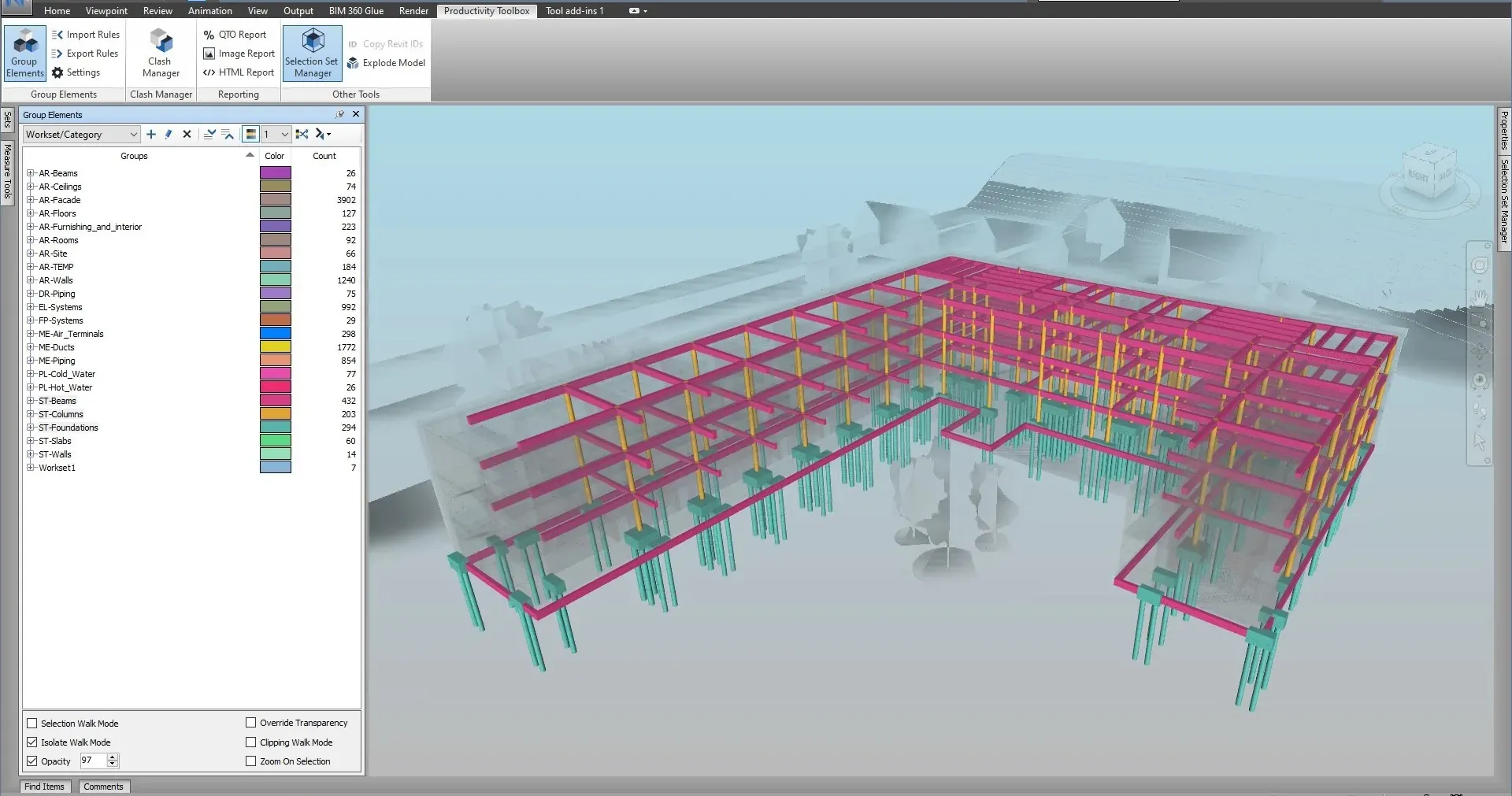
Selection and search sets from property rules, rerun on every model update
Nested selection and search sets generated from property rules, coloured in the model, exported as XML and rerun on the next model.
Manage and Simulate
Navisworks® plugin · Autodesk® App Store
Productivity Toolbox automates the mechanical work Navisworks leaves to the user: property-driven selection and search sets, clash grouping, viewpoint color-coding, and reports. Installed from the Autodesk App Store.
5.0 · from verified reviews on the Autodesk App Store
Features · 11 modules
Every module is driven by the properties already in the model, so the same rules can be run again after each model update. Each card opens the full description.
Nested selection and search sets generated from property rules, coloured in the model, exported as XML and rerun on the next model.
Manage and Simulate
Group, rename and set the status of clash results in batch, and find every clash touching an element. Auto-group a whole test by level, grid, assignee, status, source file or item property.
Navisworks Manage only
Save the clash matrix from selection set folders, fill in the tolerances and load it back as clash tests, with nested folders, a load preview, the Matrix report and a clash history workbook.
Navisworks Manage only
Colour the model by property value and export saved viewpoints that keep the group tree and its colours.
Manage and Simulate
Spread a grouping's elements apart along up to three axes so a breakdown can be inspected piece by piece, then reset it.
Manage and Simulate
Select elements in the model and see every selection or search set that contains them, nested folders included.
Manage and Simulate
A pane that lists the Revit rooms under their levels. One click sections the view to that room or level, and checked rows are sectioned together.
Manage and Simulate
Pick a selection set folder and get the matching TimeLiner task tree, ordered by a construction-sequence blueprint, with planned dates laid out from a start date.
Manage and Simulate
One rendered image per group, an HTML report that prints one group per page, and Excel clash reports with a summary, a pivot, a set-by-set matrix and a history.
Manage and Simulate
Sum quantities for every group at the deepest level of a grouping and export them to an Excel workbook with a pivot summary, or to CSV.
Manage and Simulate
Export chosen properties per element to Excel or CSV, write spreadsheet values back onto matching elements, and copy Revit ids for Select by ID.
Manage and Simulate
Clash workflow · Navisworks Manage
Verified reviews
From verified reviews on the Autodesk App Store. Average of the four reviews shown here.
Read all reviews on the Autodesk App Store"This is the ultimate toolsets pack for Navisworks making any BIM analyses possible in just a few clicks."
"Expedited use, intuitive design, and time-saving are some of the exceptional features of this tool."
"Such an efficient, fast, and productive tool. I cannot imagine using Navisworks without this plugin."
"Great set of tools for some of the worst Navisworks chores. It takes element set creation to a new level."
Pricing
Licensed through the Autodesk App Store and tied to your Autodesk account. The 30-day trial has no feature gating and no credit card.
Pricing detail and the return-on-investment calculatorCommon questions
Still have questions? Email support@productivitytoolbox.app.
All 17 questions on the FAQ pageDownload and install directly from the Autodesk App Store. The installer adds a Productivity Toolbox ribbon tab to Navisworks Manage or Simulate the next time you launch the application. It installs for the current Windows user and does not need administrator rights.
Navisworks 2021, 2022, 2023, 2024, 2025, 2026 and 2027, Manage and Simulate editions, on 64-bit Windows. One installer covers every version; the plugin loads the build that matches the Navisworks you start. The plugin interface is in English.
Group Elements, the Selection Set Manager, image and HTML reports, take-offs, and property import and export work in both Navisworks Manage and Navisworks Simulate. Clash Manager, Clash Results, Save Matrix and Load Matrix need Navisworks Manage, because Simulate has no Clash Detective. On Simulate those four buttons are greyed out with a Navisworks Manage only tooltip. The Section Box Manager and Generate Timeline work in both editions.
Every ribbon button has a tooltip that says what it does, what it needs and what it produces. Pressing F1 on a button opens the section of the user guide on this site that documents the command. The tutorials page lists every video.
Get started
No license server, no key entry. Sign in with your Autodesk account and the plugin appears on your Navisworks ribbon the next time you launch it.