Clash grouping for Navisworks
Collapse thousands of clash hits into reviewable assemblies.
Productivity Toolbox renames, groups and sets the status of clash results in batch, and Auto-group sorts every clash of a test by nearest level, grid intersection, assignee, status, source file, or any item property.
In version 3.0.0: Clash Manager with Batch Update, run groups, Set Status For All Results and the Excel reports with a Summary sheet, and Clash Results with Auto-group, rename, Set Status, Add To Group with drag and drop and the intersecting-clash lookup.
How it works
Three steps, one pass.
Clash grouping inside Productivity Toolbox reads from the standard Clash Detective. Your tests and tolerances do not change.
- 01
Pick a rule
Nearest level, grid intersection, assignee, status, the source file of either item, or any property of either clashing item. Add a second rule to split each group further.
- 02
Run the auto-group
Auto-group reads every clash of the selected test, buckets them by the rule, and creates one group per bucket. Buckets below your minimum size stay ungrouped. Existing groups can be kept or regrouped.
- 03
Rename, set status and export
Rename groups in batch by status, test name, tolerance, or a custom name, set the status of the checked results, then export the Excel reports: Standard, Assigned To, or Detailed with one row per clash. Every report opens on a Summary sheet, the Standard and Assigned To reports add a pivot, and the Detailed report has columns for level, grid and both clashing items.
Clash Manager and Clash Results
Tests, status, groups and names in batch.
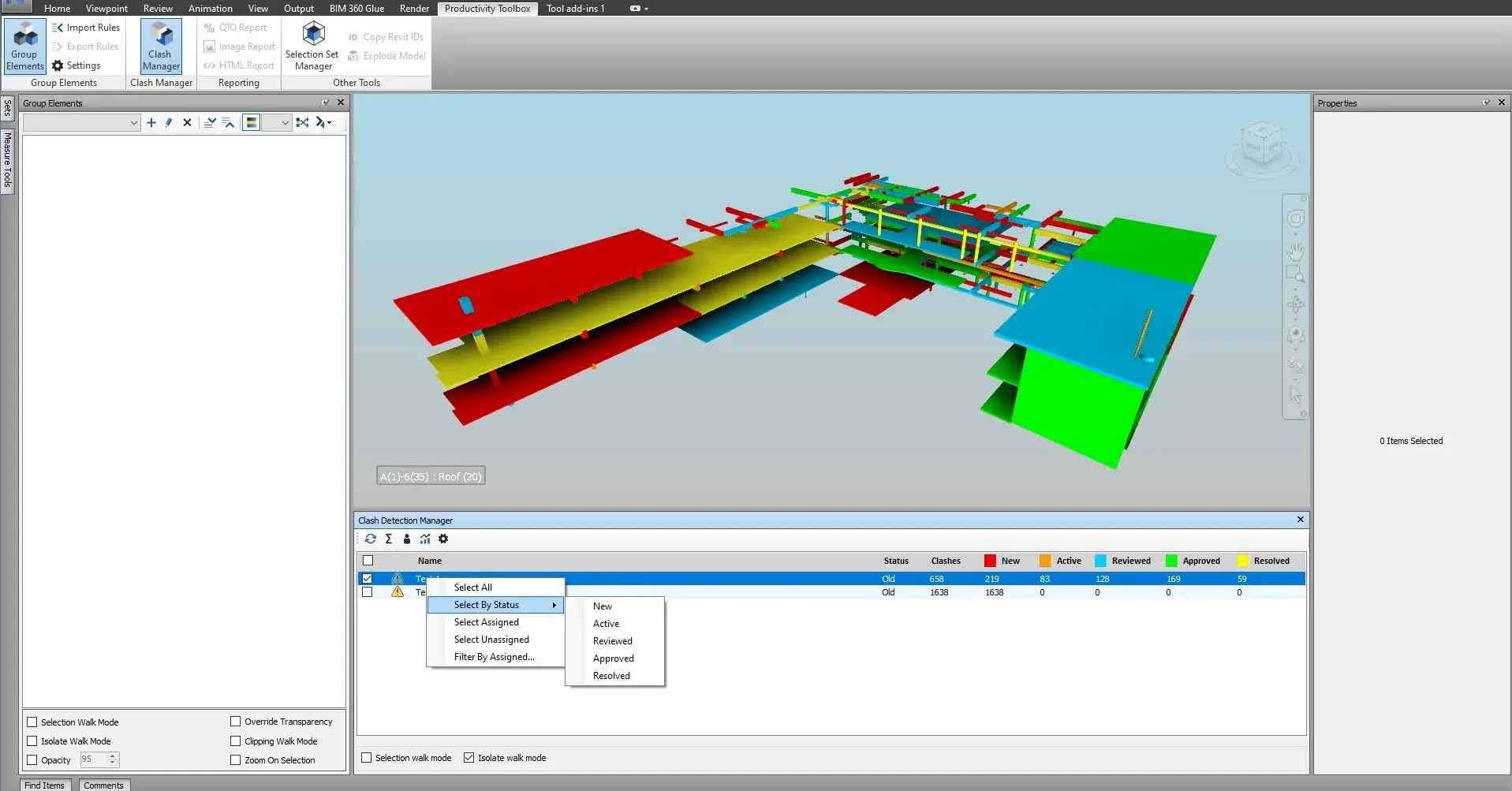
The Clash Manager pane runs and edits clash tests in bulk. The Clash Results Navigator steps through the results of a test with walk mode, filters and an intersecting-clash lookup, and its right-click menu renames, groups and sets the status of every checked result at once.
- Batch Update changes the type, tolerance, or name prefix and suffix of every checked test in one step, keeps their results, and can be undone.
- Save a set of checked tests as a run group and tick the same batch again next week with one click. Update selected clash tests runs them one after another behind a cancellable progress bar.
- Select the elements of a test by status, by assignee, or all assigned or unassigned results, and isolate a test in the model. A colours drop-down switches the isolated clashes between red and green sides and status colours.
- Set Status on the checked results changes the status of those clashes; checking a group updates every clash inside it.
- Rename can keep the original name or replace it. A replaced name ends with a unique id, so names never collide and a second rename keeps the same id.
- Filter and rename options are kept while the pane is open and apply to every test you switch to.
- Set Status For All Results: right-click a test in Clash Manager to set every result, grouped ones included, to New, Active, Reviewed, Approved or Resolved after a confirmation.
- Add To Group: the Clash Results context menu offers New Group with a name prompt, or any existing group of the test, as the target.
- Drag and drop: drop results onto a group row; dragging a checked row moves every checked result, and results already inside another group can be moved too.
Watch it run
Clash Manager, inside Navisworks.

The Clash Manager tutorial. Auto-group and the Clash Results pane are described on this page until the video is updated.
Questions
What coordinators ask before they trial.
Does this change how I configure clash tests in Navisworks?
What happens to grouped results when the federated model updates?
Which Navisworks versions and editions are supported?
How is it licensed?
Try it on your next coordination run.
30 days, unrestricted. Download it from the Autodesk App Store and run the installer; no administrator rights needed.