Group Elements
Isolate and color-code viewpoints from any property
Colour the model by property value and export saved viewpoints that keep the group tree and its colours.
Manage and Simulate
Group Elements
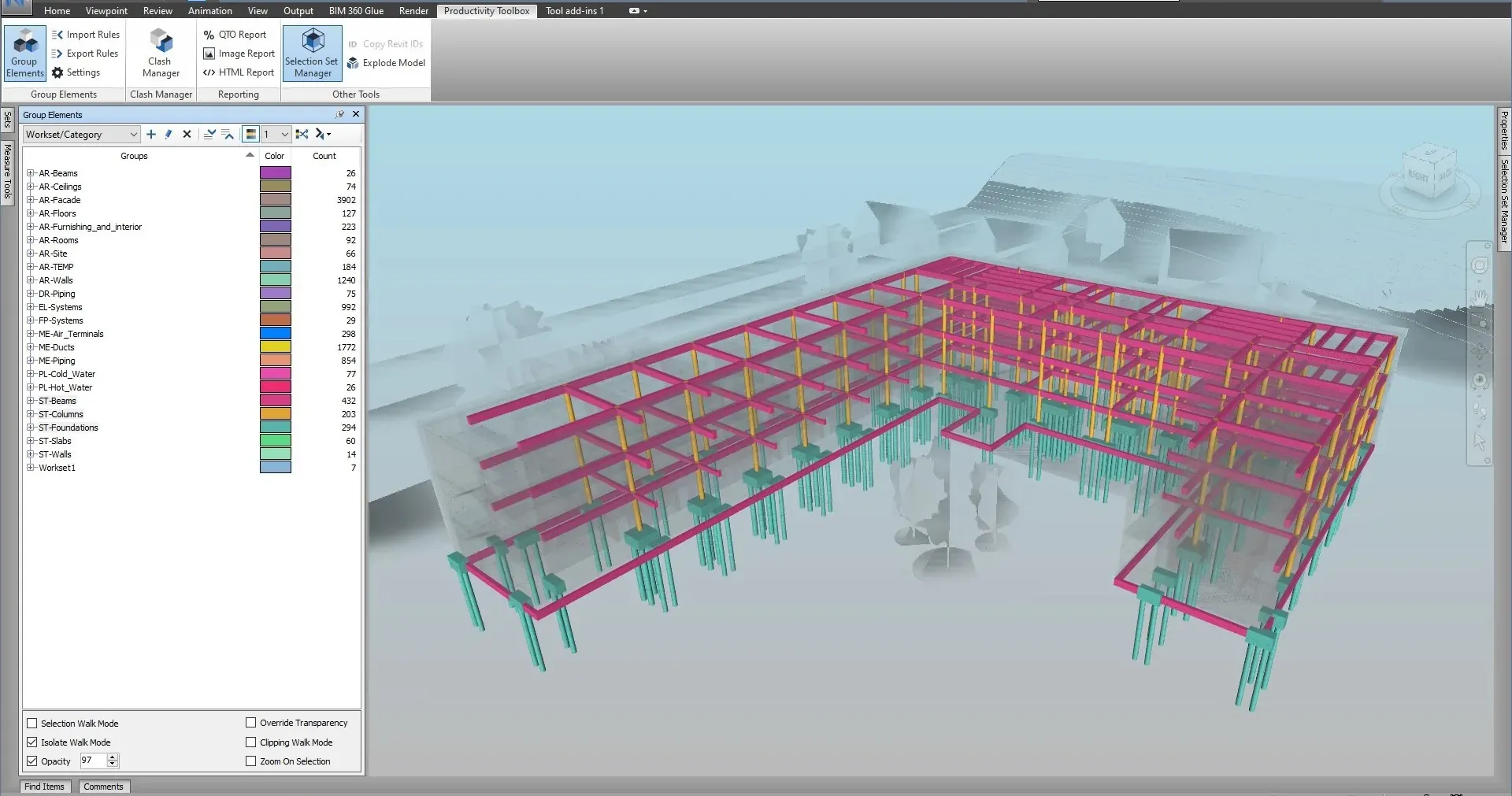
Group Elements turns a list of property rules into a nested breakdown of the federated model: level, discipline, system, contractor, phase, or any property the model carries. Each rule adds a level to the tree, one level of the tree is colour-coded in the model, the breakdown can be saved as selection or search sets, and the rules can be exported to XML and rerun after the next model update.
What it does
Nested selection and search sets generated from property rules, coloured in the model, exported as XML and rerun on the next model.
How it works
Open the Group Elements pane, pick a property for the first level of the tree, then add a rule per level below it. Analyze properties lists every category and property the model carries.
Run the grouping over the whole model or the current selection. The pane colours the groups of one level in the model. Right-click groups to recolour, isolate or save them as a set, or export the whole grouping to saved viewpoints.
Save all writes the tree to selection sets. Export Rules writes the rules to XML; Import Rules replays them on the next model update.
Since version 2.8.0 the grouping engine reads the model once per rule and buckets the elements by value, instead of running one Navisworks search per distinct value. On typical models grouping runs about twice as fast and uses roughly half the memory. Values read from the model are remembered for the session, so editing or re-running a rule on the same property is near-instant.
Since version 3.0.0, a rule set reads the model once for all its rules, and a rules file once for the whole file: importing six rule sets into an 11,000-element model went from 30 seconds to 2 seconds. Long runs can be cancelled from the progress bar. A cancelled grouping leaves the previous state in place, and a cancelled import keeps the rules imported so far and reports how many ran.
Save all in the Group Elements pane asks whether to create search-based or static selection sets. Search sets are built from the whole chain of rules above each group, so predefined, value-list and numeric-range rules produce search sets that update as the model changes. Substring rules fall back to static sets per branch, because a value-OR cannot nest in a flat Navisworks search.
Cache Properties reads every item once and keeps the categories, properties and distinct values in memory. Save Cache writes it to a JSON file and Load Cache installs it on another machine without rescanning. With a cache in place the custom text, custom numeric and list-of-values dialogs, the QTO Report and Import Properties open with their category and property lists already filled, and Analyze properties for the whole model no longer rescans the model. A demo cache ships with the plugin's demo files.
Watch it run

Generate selection and search sets automatically from property hierarchy. All tutorials
At a glance
Pressing F1 on any of these ribbon buttons opens the help page for that command on this site, which forwards to the section of the user guide that documents it.
Colour the model by property value and export saved viewpoints that keep the group tree and its colours.
Manage and Simulate
Sum quantities for every group at the deepest level of a grouping and export them to an Excel workbook with a pivot summary, or to CSV.
Manage and Simulate
Spread a grouping's elements apart along up to three axes so a breakdown can be inspected piece by piece, then reset it.
Manage and Simulate
30 days, unrestricted. Download it from the Autodesk App Store and run the installer; no administrator rights needed.