Introduction
What Productivity Toolbox does, how to install and license it, and how the ribbon, help and error dialogs work.
Productivity Toolbox is a plugin for Autodesk Navisworks Manage that automates the mechanical work of BIM coordination: building selection and search sets from properties, colouring and splitting the model, collapsing hundreds of clash hits into reviewable groups, and writing reports and quantity take-offs to Excel. Everything lives on one ribbon tab, and every tool works on the model you already have open.

What the toolbox does
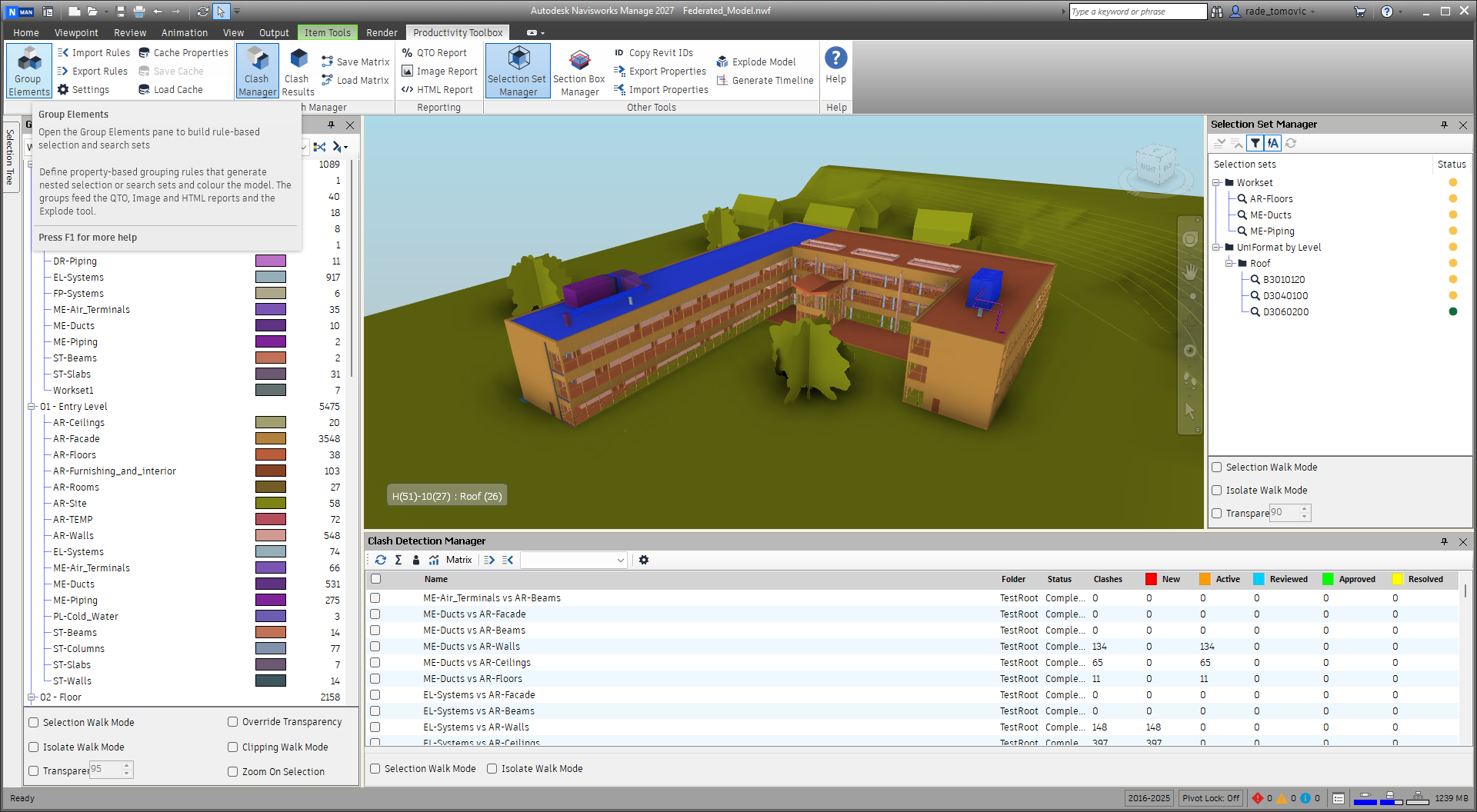
The tools are arranged in four ribbon panels. Each has its own chapter in this guide.
- Group Elements builds nested groups of model elements from property values (level, system, category, any property you choose), colours them in the model, and turns them into selection or search sets. Grouping rules can be saved and reused on another model. The groups feed the reports and the Explode Model tool.
- Clash Manager works on the clash tests you already run in Clash Detective. It lists and batch-updates tests, groups and assigns results, exports Excel reports with summaries, pivots and week-to-week history, and creates whole sets of tests from a matrix workbook.
- Reporting writes a quantity take-off per group to Excel or CSV, renders one image per group, or produces a browsable HTML report with several views of every group.
- Other Tools holds the Selection Set Manager, the Section Box Manager, Copy Revit IDs, Export and Import Properties, Explode Model and Generate Timeline.
Installation
Productivity Toolbox is distributed through the Autodesk App Store. Install it from the App Store page while Navisworks is closed. The next time Navisworks starts, the Productivity Toolbox tab appears on the ribbon. There is nothing to configure.
The plugin runs in Navisworks Manage. In Navisworks Simulate the four clash buttons are greyed out with a “Navisworks Manage only” tooltip, because Simulate has no Clash Detective; every other tool works normally.
Licensing
The App Store licence includes a free trial. The plugin checks your entitlement with the App Store the first time you click a tool in a session, using the Autodesk account you are signed in to in Navisworks. A short “Checking credentials for Productivity Toolbox” progress message appears while this happens.
Once a check has succeeded, you can keep working offline for 24 hours without another check. If the store cannot be reached after that, or reports that the account has no licence, a message tells you what to do:
- Connect to the Internet.
- Sign in to your Autodesk account in Navisworks (the account that bought or trialled the plugin).
Then click the tool again.
Working with the ribbon
- Dock panes. Group Elements, Clash Manager, Clash Results, Selection Set Manager and Section Box Manager are panes. Their ribbon buttons toggle the pane; the button stays highlighted while the pane is shown. Panes can be docked, floated and auto-hidden like any Navisworks window, and Navisworks remembers where you left them.
- Dialogs. The other buttons open a dialog, do their work and close.
- Greyed-out buttons need something first: a selection (Copy Revit IDs, Export Properties), at least one group made in Group Elements (Export Rules, QTO Report, Explode Model), cached properties (Save Cache), or a selection-set folder (Save Matrix). Hover the button to read what it needs.
- Tooltips and help. Every button has a tooltip that says what it does, what it needs and what it produces. Press F1 while hovering a button to open the help page for that command on productivitytoolbox.app, which forwards to the current video or documentation.
- Help panel. The Help button at the right end of the tab opens this guide in your browser. It is always enabled, even with no model open.
- Progress and cancel. Long operations show a Navisworks progress bar. Where the bar has a Cancel button, cancelling keeps what was finished so far and the dialog reports how far it got.
- Undo. Changes the toolbox makes to the document (clash statuses, renamed results, groups, created tests, selection sets, TimeLiner tasks) are Navisworks undo steps; a batch is one step.
When something goes wrong
If a tool fails, a dialog explains the problem and shows a line such as
Reference: a1b2c3-d4e5f6. Quote that reference in a support email and we can find the exact
incident.
To find such incidents and to see which tools are used, the toolbox sends pseudonymous usage and error data:
- which commands and buttons you use, how long they take, whether they succeed, and counts such as how many items an operation processed;
- errors: the type of error, its message and the list of program steps that led to it;
- short diagnostic notes, such as counts and timings;
- the toolbox and Navisworks versions, the edition (Manage or Simulate) and the language setting;
- a random install identifier, a session identifier and a one-way hash of your Autodesk sign-in id. The id itself is not sent, but the same sign-in id always gives the same hash, so your data can be linked across sessions and computers.
File paths are replaced by placeholders before anything is sent. Model names, element names, names you type (rules, groups, tests, sets) and user names are not sent. The telemetry service works out an approximate location (country and city) from the network address the data comes from and does not keep the address itself.
Getting help
- This guide: the Help button on the ribbon, or https://productivitytoolbox.app/help/user-guide
- Website: https://productivitytoolbox.app
- Video tutorials: https://www.youtube.com/channel/UCC_ltO41J0NRe0aJXufPTyg
- Email: support@productivitytoolbox.app
- LinkedIn: https://www.linkedin.com/company/productivity-toolbox-bim-users-group
Something unclear or out of date in this chapter? Write to support@productivitytoolbox.app.